Dont put trash here.. !

Jumat, 22 Februari 2019

Mematikan Windows Update Permanent

Cara Mematikan Windows Update Secara Permanent

Pada dasarnya Pembaruan Windows pada Windows 10 tidak dapat dinonaktifkan karena Microsoft ingin penggunanya mendapatkan pembaruan terbaru dari mereka, mereka ingin agar pengguna windows selalu up to date, tetapi ada beberapa orang yang tidak menyukai kebijakan seperti ini, seperti orang yang memiliki akses internet terbatas, pengguna yang menggunakan kuota dan gamer yang terkadang kesal karena pembaruan windows memaksa mereka untuk me-restart komputer mereka secara tiba-tiba bahkan ketika mereka sedang dalam match, bagi yang menggunakan kuota windows update adalah musuh utamanya, saya pribadi sering kehabisan kuota gara gara windows update yang jalan tanpa saya ketahui.  Kali ini saya akan memberi tips bagaimana cara memberhentikan windows update secara permanent

DISCLAIMER !!! , Tweak ini memodif Windows anda, anda tidak dapat mengaktifkan kembali Windows Update karena metode yang kita gunakan adalah dengan cara menghapus Service dari Windows Update itu sendiri, apapun yang bersangkutan dengan Windows Update tidak akan dapat berjalan seperti Windows Store, dll. Jadi pikirkan matang matang sebelum melakukan ini . saya tidak bertanggung jawab apapun yang terjadi dengan sistem anda. Do it with your own risk

Jika anda sudah yakin, Mari kita Gaskeun

Penting sebelum kita men-delete Windows Update Service pastikan komputer anda tidak terkoneksi dengan internet, jika terkoneksi, matikan dulu koneksi internet nya . jika windows update berjalan ketika kita melakukan "eksekusi mati" pada windows update, bisa memperparah keadaan. :>

1. Pertama tama download dulu Windows 10 Manager di sini
2. Ekstrak lalu install Windows 10 Manager nya
3. Setelah itu jalankan Windows 10 Manager. 
4. Sebelum kita menghapus windows update, pastikan windows update telah mati atau disable, kalau belum matikan dulu 

Masuk ke Service Manager
Tekan Windows + R lalu ketikkan "services.msc"
Cari "Windows Update" 
Lalu matikan, ganti startup type ke disabled lalu tekan Stop dan Apply
5. Pindah ke Windows 10 Manager yang sudah dibuka tadi, masuk ke menu Optimizer lalu masuk ke Service Manager.
6. Cari Windows Update Service
7. Klik kanan lalu pilih Delete dan pilih Delete Service, jangan pilih Delete Service and File karena nanti akan mempengaruih services yang lain
8. Jika sudah selesai, Restart komputer anda.
9. Dan selesai, tidak ada lagi Windows update yang mengganggu. 


Share:

Disable Windows Update Permanently

Disable Windows Update Permanently Easiest Way.!

Basically Windows Update on Windows 10 is impossible to disable because Microsoft wants their users to get the latest updates from them, they wants windows users are up to date, but there are some people who don't like policies like this, like people who have limited internet access, users who use quota and gamers who are sometimes annoyed because windows update forces them to restart their computer suddenly even when they are in a game, Today, I'am gonna showing you how to permanently turn off the Windows Update

But First lets take a disclaimer, this tweak will modify your Windows system, you cant turn on your windows update back after applying this, this guide will lead you to delete windows update service, not to disable it for a while, anything that need Windows Update to run wont work after this, like Windows Store, etc. So think twice to do this weak, I am not responsible for anything that happens with your device.

If you already sure, Let's Start

IMPORTANT!!.
Before Deleting the Windows Update make sure you are not connected to the internet , if connect, Disconnect first !!

1. First you will need Windows 10 Manager, You can download it here , disable your adblock before downloading..!
2. Extract and Install the Windows 10 Manager.
3. After that run the Windows 10 Manager.
4. Before deleting Windows Update, make sure the windows update disabled and stopped at services with these steps
Start Run using Windows + R and Then open Service Manager
by typing "services.msc"
Find Windows Update
Change Startup Type to Disable and Stop the service and then Apply 

5. And then, Move to Windows 10 Manager, and point it to Optimizer and then choose Services Manager

6. Wait until service manager comes out

7. Find Windows Update Service in the Service Manager

8. And then Right Click and Delete and Delete Service, dont delete service with the files because it may cause damage to your operation system


9. If you are done, Restart your PC

10. And Finish, there is no anoying windows update anymore!!


Dont forget to share to your friends thats get annoyed by windows update
CHEERS!!
Share:

Senin, 27 Agustus 2012

Membuat animasi slideshow online di TripWow


Menjelajahi Dunia Slideshow: Ichsan’s trip to 7 cities including and Amerika Serikat was created with TripAdvisor TripWow!


Membuat animasi slideshow di TripWow  berikut hasilnya di atas
caranya mudah   :
1. Masukan alamat nya : http://tripwow.tripadvisor.co.id  
2. lalu klik "MEMBUAT SLIDESHOW ANDA"
    kalau bahasa ingris "CREATE YOUR FREE SLIDESHOW"
3. pilih tema nya
4. bisa ambil foto FB,picasa,flickr atau upload dari komputer
5. kalau mau dilihat dulu klik "PRATINJAU" atau bahasa ingris "PREVIEW"
6. klau sudah selesai klik "SELESAI" atau bahasa ingris "DONE!"
******Selesai******

Share:

Selasa, 08 Mei 2012

Cara Mengaktivasi Angry Birds Space

Hai , Kita ketemu lagi sobat kali ini kita akan membahas cara mengaktifasi program Angry Birds Space .
   >>Angry Birds Space Biasanya kalau kita download DiWebsite Nya (download.angrybirds.com) pasti akan minta activation code atau beli / buy di website Nya . cara untuk menghack angry birds yaitu
   1.Download Angry Birds Space Yang BerUkuran 32MB di http://www.mediafire.com/?regexcbuao9znq
 Password :www.remo-xp.com 
    2.Extract Angry Birds Di My Documents . Dan
   3.Install Angry Birds (buka file AngryBirdsSpaceInstaller_1.0.0 )
   4.Setelah di install Jangan Di Launch Dulu Angry Birds Nya
   5.Buka File Patch.rarsSpaceInstaller_1.0.0 Setelah selesai buka angry birds space
   6.Click Activation Code Lalu ketikan salah satu huruf
   7.dan Selesai
   Semoga Berguna Untuk Sobat2x Di Rumah


Share:

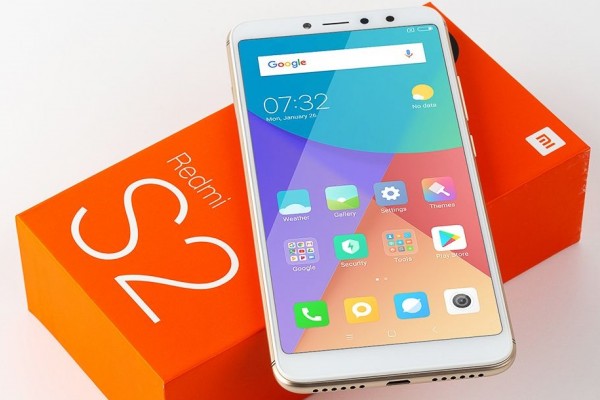
Cara Unlock Bootloader Xiaomi Redmi S2 Ysl Tanpa Nunggu 360 Jam

Hallo sob, kalian sudah taukan kelebihan dan kekurangan unlock bootloader untuk hp xiaomi ?? Nah sekarang saya kan membahas bagaimana cara u...

Blogroll

Postingan

Cari Blog Ini

Diberdayakan oleh Blogger.

Halaman